


What you can safely check
Use a hard, flat surface and check that vents are unobstructed. Note whether the issue appears in a browser, video playback or a heavier application.
Do not remove the cooler or insert objects through vents. If the laptop shuts down, do not repeatedly load it to reproduce the problem.
How we can help
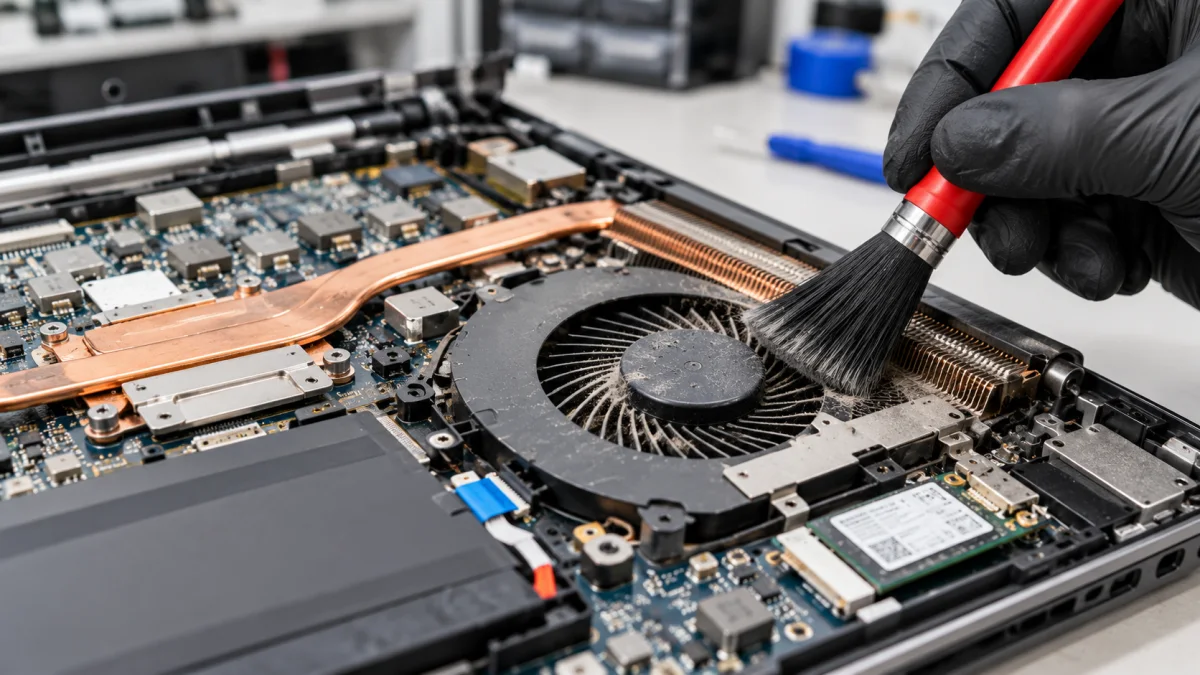
We open the laptop according to its construction, clean the fan and heatsink and replace thermal paste. Where the model uses thermal pads, we assess them and clarify the materials needed.
After servicing, we check temperatures, noise and operation. A mechanically faulty fan or slow drive cannot be fixed by cleaning alone; we explain the distinction before further work.
Price and what the service includes
This option covers office laptops. Gaming models and liquid-metal maintenance have separate services. Parts and file or Windows work are not automatically included in cooling maintenance.
What to send or bring
Tell us the exact model, when it overheats and any service history. Bring the charger for testing. Do not send passwords in chat; any system access needed for a particular test is arranged separately.
How we handle it
-
01
Clarify the model, workload and symptoms.
-
02
Inspect the fan, heatsink and thermal contact.
-
03
Clean and carry out the agreed thermal maintenance.
-
04
Check temperatures, noise and stability.
FAQ
How often is maintenance needed?
It depends on environment, construction and use. Rather than one interval for every model, we consider symptoms, dust and service history.
Will the laptop become faster?
Normal performance may return if overheating caused the slowdown. Cleaning does not increase the capabilities of the CPU, memory or drive.
Will you reinstall Windows?
Not as part of cooling maintenance. Software changes and data work are discussed separately.


